
 Support
Set up Forsk
One card sets up the two parts that need something extra: chat and Daylight & image scan. Everything else works straight after install.
To open the card, click the gear in the Forsk panel, then Set up Forsk. On a new, empty file the same button sits under the first-run tips.
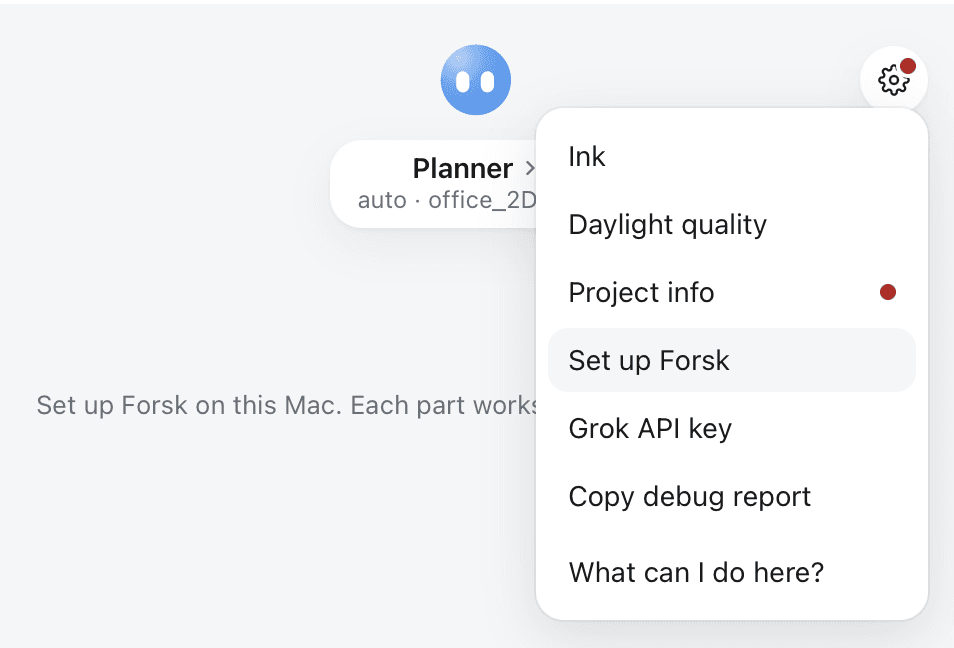
Chat: add your Grok key
Chat runs on xAI’s Grok with your own key, so you pay xAI directly for what you use.
- On the Chat row, click Get a key. xAI’s console opens in your browser.
- Sign in, create an API key and copy it.
- Back in Forsk, click Add Grok key, paste the key and click Save. The row says Ready.
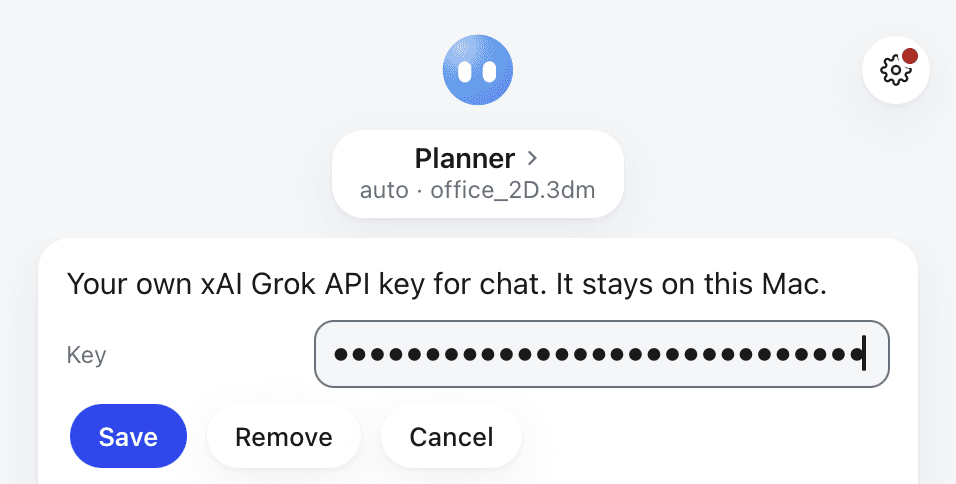
The key stays on your Mac. To change or remove it later, click the gear, then Grok API key.
Daylight & image scan
- On the Daylight & image scan row, click Set up.
- Forsk downloads what it needs and shows each step on the card. It takes about a minute. The row says Ready.
- Click Done.
No Terminal and no restart. Reading a scan or photo of a plan downloads one more file (about 200 MB) the first time.
What works without setup
Generate 3D, Print, the file exports, opening a DXF and the draw tools work without either row. Only chat needs the key.
Try it
- On an empty file, click Open sample house.
- Click Print PDF. You get a full drawing set of the sample house.
Then open your own plan image. Image to vector reads a PDF, scan or photo.
Still stuck? Ask Support in the Forsk panel, or see open tickets.